> ## Documentation Index
> Fetch the complete documentation index at: https://docs.identifai.net/llms.txt
> Use this file to discover all available pages before exploring further.
# Quickstart
> Start calling our APIs in under 5 minutes!
## Setup your development
### Get your API Key
An API Key allows you to authenticate your requests and access the API services.
To acquire your API key and begin your development journey, follow these simple steps:
If you don’t have an account yet, visit our [platform](https://web.identifai.net/register) and **create a user profile**.
Once you’ve completed registration, **verify your email** and **log in** with your credentials.
If you need help with this step visit the [sign up](sign-up) section!
After logging in, you will find yourself on the **main dashboard** of the platform.
Click on the **user icon** () in the top-right corner of the screen to open the **user dropdown menu**.
In the dropdown menu, select the **“Api-Key”** option. From there, you can **view** or **reset** your API key.
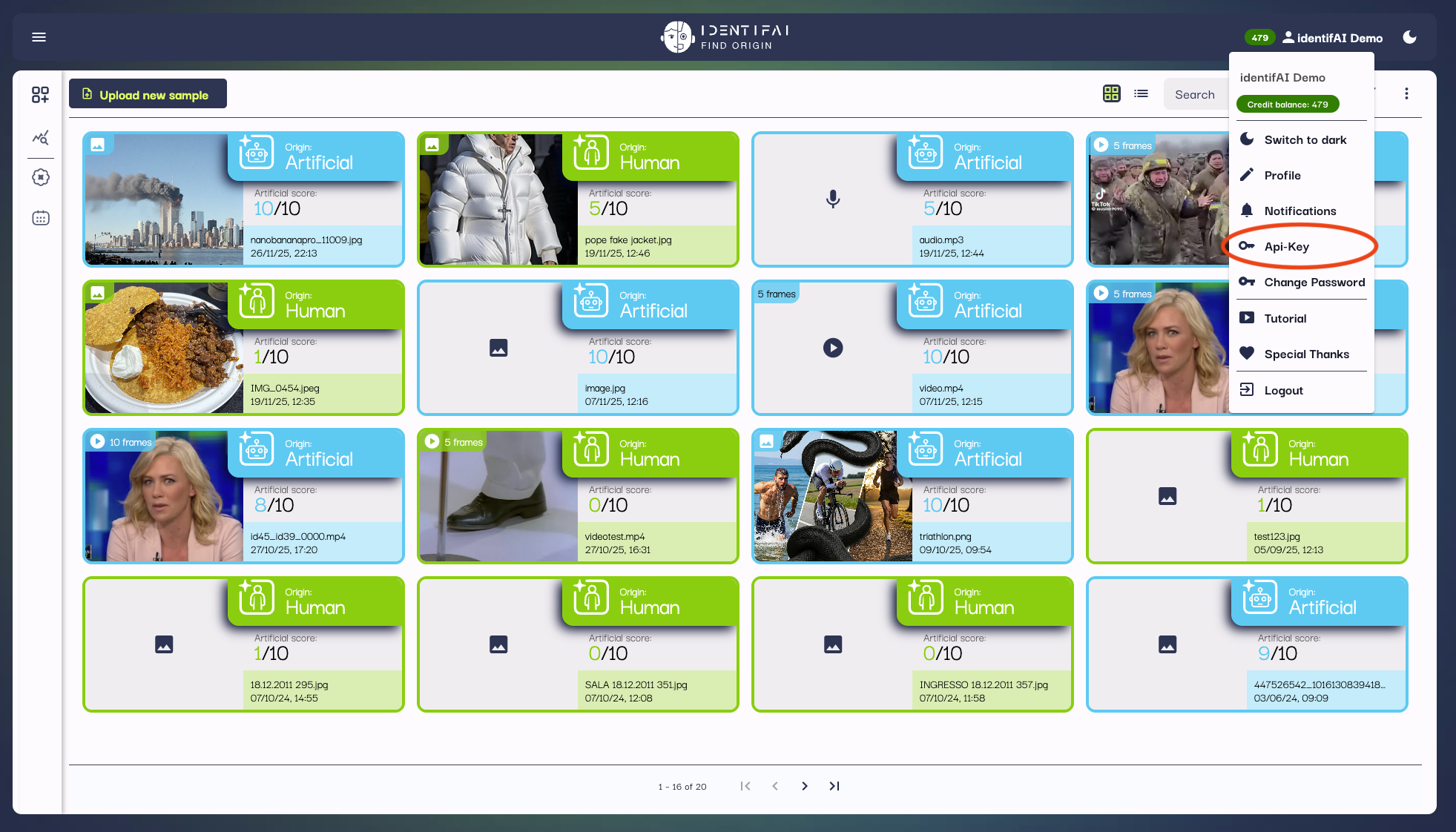 Your API key is ready to be used — start using our APIs now!
Store the API key in a secure location and avoid sharing it publicly.
### Make an API call
To start an image or video classification, you need to make a **POST** request to `/api/classification` or `/api/classification_video` with the required parameters (for details on the parameters, refer to the [API Reference](../api-reference) section).
Use the provided identifier to retrieve the classification results by making a **GET** request to `/api/classification/{identifier}` or `/api/classification_video/{identifier}` (for details on how to structure this request, see the [API Reference](../api-reference) section).
For more informations see the [Classification API](classification) section.
## In-depth guides
Start an image classification and find out if your image is real or artificially generated!
Find out how to start a video classification and discover whether your video is authentic or artificially generated
Find out how to start a speech classification and discover whether your speech is authentic or artificially generated
Need help with registration? Follow our tutorial.
Your API key is ready to be used — start using our APIs now!
Store the API key in a secure location and avoid sharing it publicly.
### Make an API call
To start an image or video classification, you need to make a **POST** request to `/api/classification` or `/api/classification_video` with the required parameters (for details on the parameters, refer to the [API Reference](../api-reference) section).
Use the provided identifier to retrieve the classification results by making a **GET** request to `/api/classification/{identifier}` or `/api/classification_video/{identifier}` (for details on how to structure this request, see the [API Reference](../api-reference) section).
For more informations see the [Classification API](classification) section.
## In-depth guides
Start an image classification and find out if your image is real or artificially generated!
Find out how to start a video classification and discover whether your video is authentic or artificially generated
Find out how to start a speech classification and discover whether your speech is authentic or artificially generated
Need help with registration? Follow our tutorial.